All Serendipity Software products have a built-in Archives application to help back-up any saved database configurations.
It is highly recommended that a backup is performed after first installation and periodically to avoid any data loss in the event of a hardware or software malfunction.
To back-up database configurations:
- It is assumed the Server and Client are both running and there are saved configurations in the Workbench.
- Go to the Applications menu > Archives to open the application.
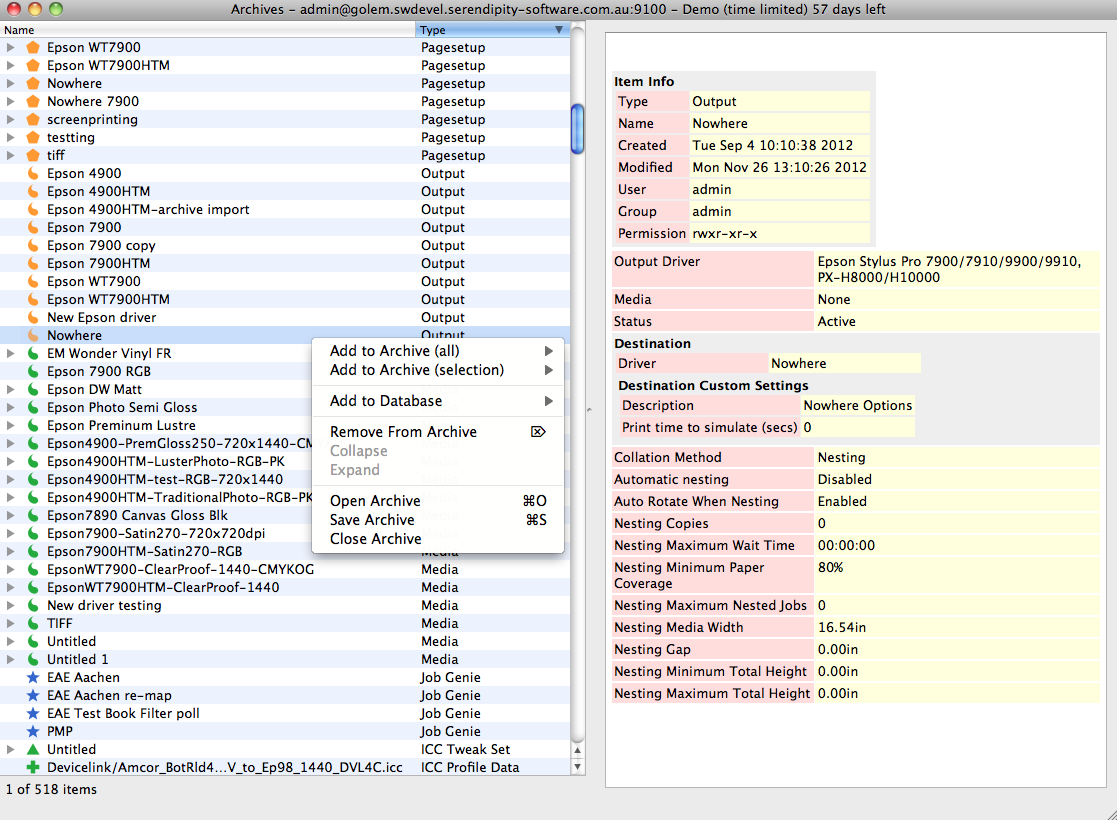
- Once open, go to the Archives window, right-click and select Add to Archive (all) > Everything. This will load all currently saved configurations into the Archives window and may take a few minutes depending on how many items it is loading.
- Once the items have loaded select File > Save Archive and save the archive file in a safe location.
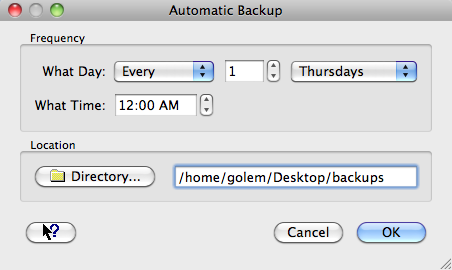
- To set automatic backups go to File > Automatic Backup Preferences.
- Select the relevant day and time for the automatic backup to be scheduled. A location to save the file will also need to be configured.
- Click OK and close the Archives application when finished.