
Serendipity Blackmagic / Veripress users wishing to use the Touch Console application and touch screen on a Mac OS X platform will need to configure the operating system desktop environment.
After installing and calibrating the touch screen and setting it’s relative Display position, make the following configuration changes:-
Mac OS X System Preferences
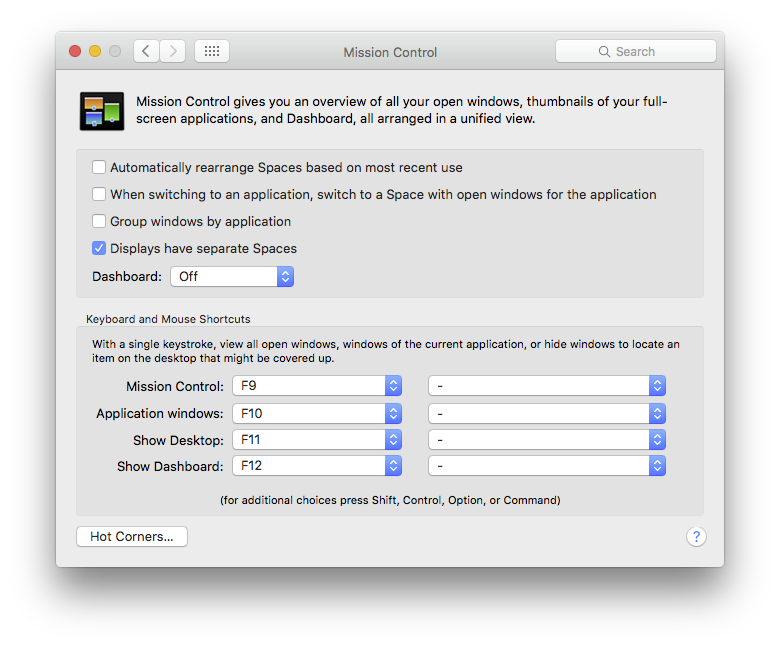
- Open OS X System Preferences > Mission Control
- tick the Displays have separate spaces option
Dock Settings
- Start the Blackmagic/Veripress Server and Serendipity Client
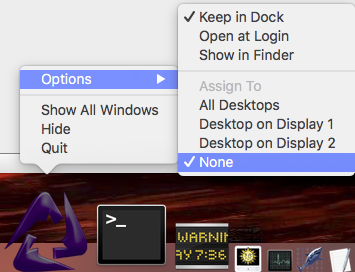
- right-click on the Serendipity Client icon in the Dock
- choose Options > Assign to > None
The Touch Console application will now open on the touch screen when it is pressed.
NOTE – TouchConsole menu access for Mac OS X 10.10 Yosemite
Users will notice they are unable to access the TouchConsole menu on Yosemite due to a peculiarity of the OS desktop handling. To access and make changes to Touch Console settings:-
- close the Touch Console application window (cmd+W)
- open the application on the main display
- hold the shift key to show the mouse pointer, move the mouse to the top of the screen to drop down the menu bar.
- make the necessary configuration changes via the TouchConsole menu.
- close the application, then reopen it on the touch screen.