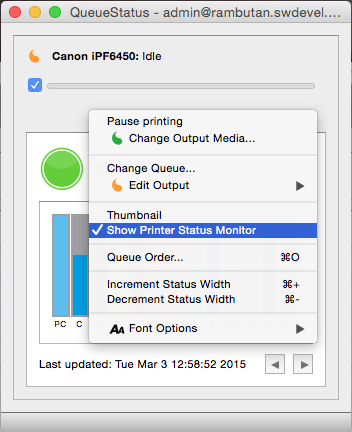
Serendipity Blackmagic / Megarip 6.0+ adds a Printer Status Monitor option to the Serendipity Client, allowing the QueueStatus module to display the current status, ink levels, warnings and error messages of a printer.
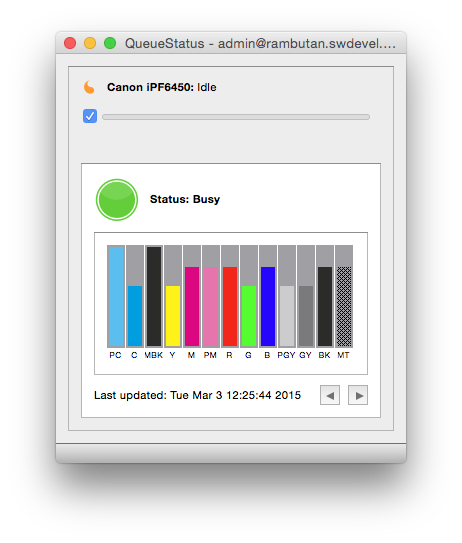
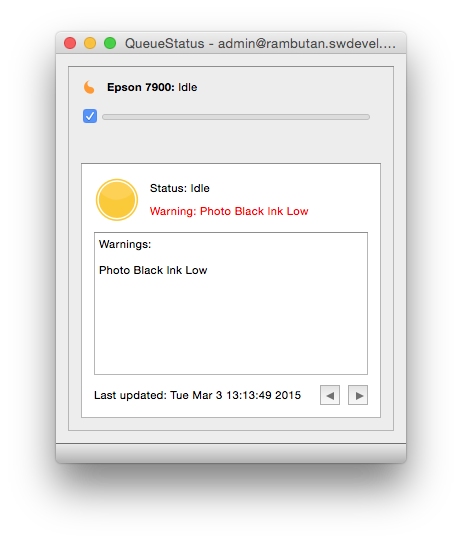
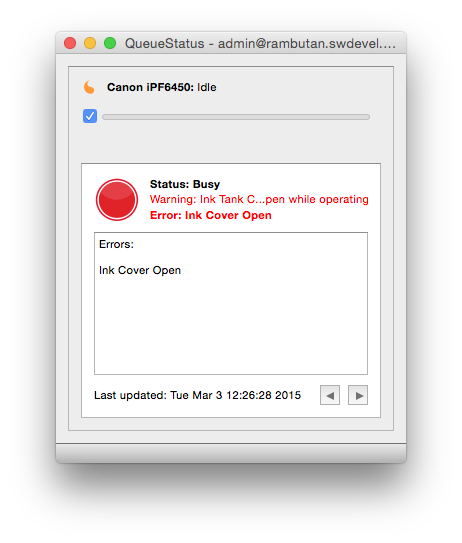
Green, Orange and Red indicators show if the printer is in a nominal, warning or error state. Arrow buttons (bottom-right) allow the user to cycle through specific printer message details.
 |  |
 | 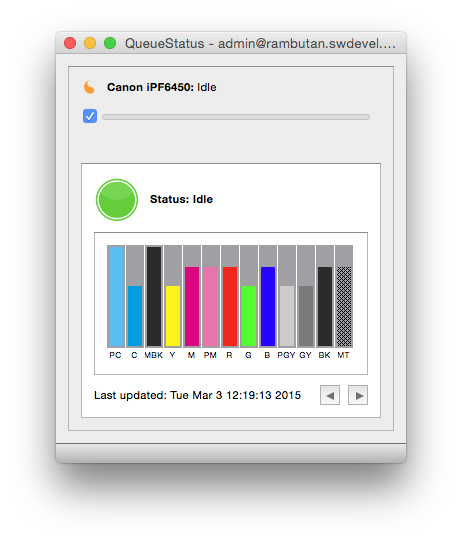 |
Hovering the cursor over an Ink channel or Maintenance Tank bar will show a tooltip with the ink name, cartridge size, status and % amount of the ink remaining.
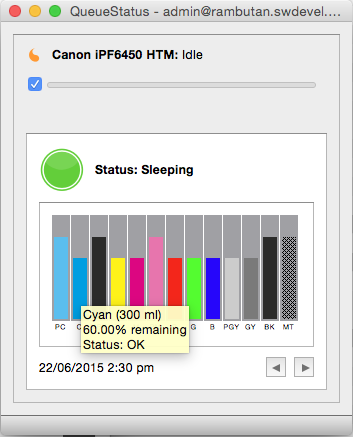
Printer Status is checked and QueueStatus updated at varying intervals as follows:-
- Printer Idle – every 60 seconds
- Printer Busy (printing) – every 15 seconds
- Printer disconnected from network or turned off – every 5 min until connection is restored.
Printer Status information can be updated manually at any time by de-activating and re-activating the printer Queue using the tickbox in the QueueStatus panel.
Enabling the Printer Status Monitor
To enable the Printer Status Monitor for a compatible printer driver:
- In the Workbench application go to the Output for the printer you wish to monitor
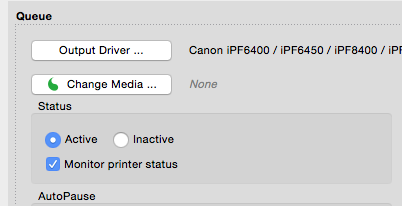
- If the printer driver allows monitoring, check to the Monitor printer status tickbox in the Queue panel of the Output, then Save.
- In the Jobs application (or stand alone) QueueStatus module, use the Change Queue contextual (right-click) menu option and select the Output.
- Select the (now enabled) Show Printer Status Monitor option from the contextual (right-click) menu.