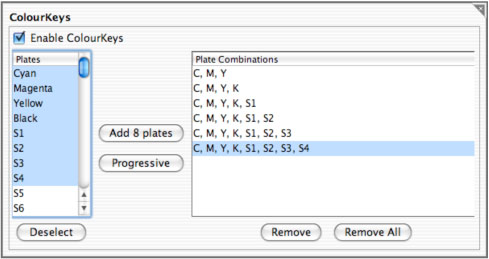
For the older versions:
- Open the Workbench application.
- Select Pagesetup in the Workbench datatypes list.
- Choose an existing Pagesetup to edit or create a new one.
- Go to the ColourKeys panel.
- Enable ColourKeys.
- Select the first plate you wish to have in the progressive, for example, Cyan.
- Click the Add 1 Plate button to copy the plate into the plate combinations list.
- Click the Progressive button to add the first plate and next plate in the list as a merged job.
- Repeat to continue adding the next plate in the list for whatever is required.
- Save when finished.
For the newer versions:
- Open the Workbench application.
- Select Jobticket in the Workbench datatypes list.
- Choose an existing Jobticket to edit or create a new one.
- Go to the ColourKeys panel.
- Enable ColourKeys
- Select the first plate you wish to have in the progressive, for example, Cyan.
- Click the Add 1 Plate button to copy the plate into the plate combinations list.
- Click the Progressive button to add the first plate and next plate in the list as a merged job.
- Repeat to continue adding the next plate in the list for whatever is required.
- Save when finished.